The Excel interface can be confusing for beginners because it has so many functions embedded in it. However, Excel is not as complex as it appears to be. If you only want to use Excel to manage your daily tasks, household duties, and certain large and minor tasks, it is much easier than it appears.
Here in this Excel for total beginners guide you will learn how to use Excel, including how to enter and modify data, create workbooks and worksheets, save and share your sheets, and anything else you should know as a beginner to start using Excel.
Why You Should Learn Excel?
Microsoft Excel is a popular spreadsheet tool that is used by many people all around the world. Data analysts, teachers, small business owners, and teams use this software to manage data, projects, find data patterns, maintain records, analyze progress, and create schedules and goals.
There is more to Excel than simply as spreadsheet usage; it is used for a variety of purposes, including project management, data analysis, data organization, report creation, calculations, and many more.
So, no matter what field you work in, Excel can make your specific tasks and other tasks related to your field simpler and faster.
Excel Basics and Interface
When you first start Microsoft Excel, you will be overwhelmed by the interface, which has numerous options and buttons.
But it’s not too difficult; the main spreadsheet where you’ll enter data is separated into rows and columns.
- Workbook: Each Excel document that we use to enter data is known as a workbook.
- Worksheet: In a workbook, we can create many sheets, which are called worksheets.
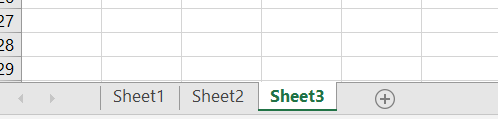
- Cell: One box in the grid. It’s where we enter data.
- Row: Rows are the cells labelled horizontally with A, B, C, and so on.
- Column: Vertically labelled cells 1, 2, 3… are referred to as columns.
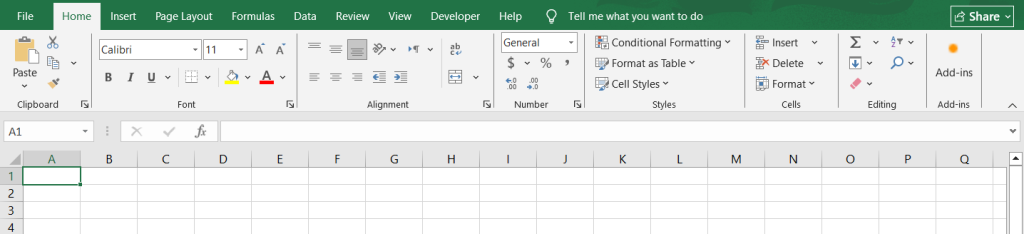
- Ribbon: Above the main spreadsheet, the toolbar at the top of the screen has different tabs like Home, Insert, and Page Layout, which is the ribbon.
- Formula Bar: It displays everything we type in a cell and is useful for entering formulas.
Entering and Formatting Data
To enter data, simply click on any cell and type the required information, such as your name, age, qualification, and anything else you want to include.
If you want to copy and paste data from another source, simply click on any cell and press Ctrl+V; your data will be entered in the cells.
Formatting Tips:
- To bold, click the B on the toolbar or press Ctrl + B.
- To change font color, select the cell, then click the underlined A icon.
- To align text, use the alignment tools (left, center, right).
- You can resize columns and rows by dragging the lines between letters/numbers.
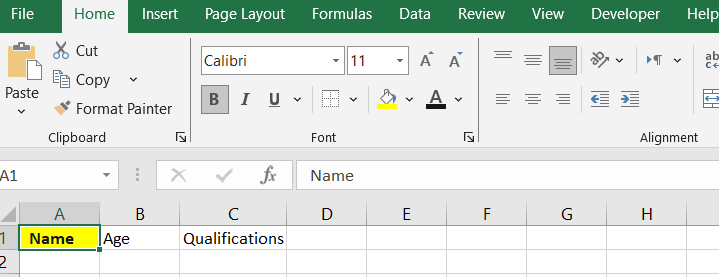
You can click on each formatting option and see which purpose they can be used. Simply click on any cell and check each option in the Font and Alignment tab.
You can quickly change the text font, size, colour, cell borders, and fill color of cells. You can also easily bold, underline, and convert text to italics.
Don’t hesitate to test yourself!
Making Your Data Look Good
To improve the appearance of your data simply turn your spreadsheet into a table by hitting Ctrl+T.
After turning your data into a table, you will be provided with several table design options from which you may select to make your data more visually appealing. You can select any table style and resize the table.
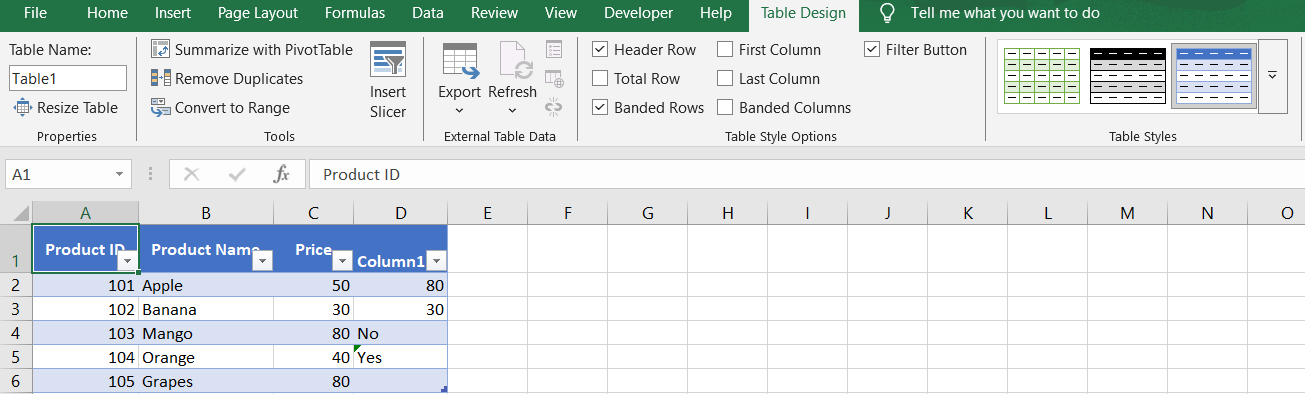
You can also apply cell borders, highlight important cells, and use conditional formatting to automatically color-code based on value (for example, values greater than 100 in red).
In this way, your data table will be clear and be easy to identify.
Sorting and Filtering Data: Finding What You Need Fast
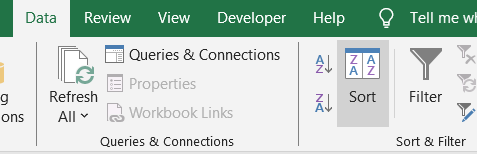
If you have a larger data sheet and want it organized alphabetically, you can use the sorting options. To apply sorting, simply click on a column heading (such as A or B) and then select Sort A-Z or Z-A under the Data tab.
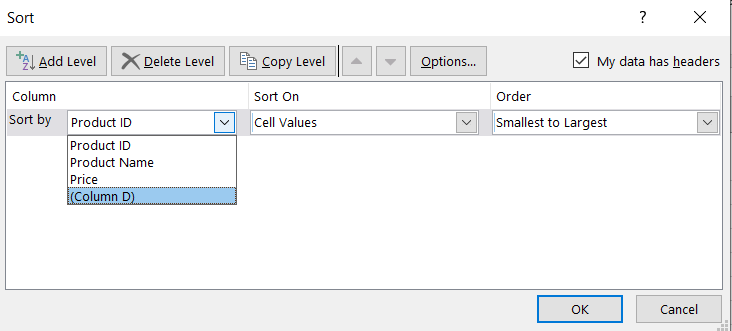
In the sorting option, you can additionally specify the column to sort by. This allows you to sort based on both text and numerical values.
Filtering:
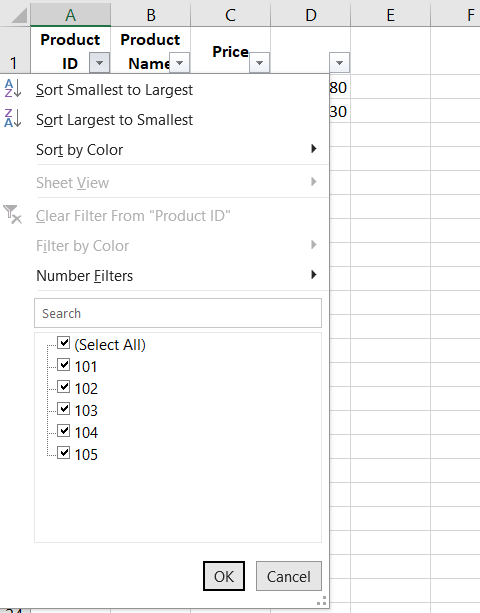
As a beginner, when working with larger data sets, you will need to apply filters to find some data quickly and easily.
To apply filters to any column, click on your data and select the Data tab. Now, click Filter (the tiny funnel icon).
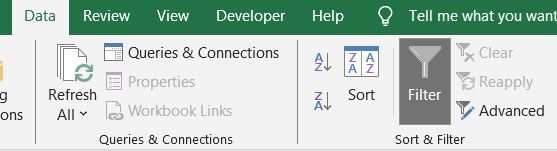
And then click the dropdown arrows on column headers to find out specific values.
Creating Charts
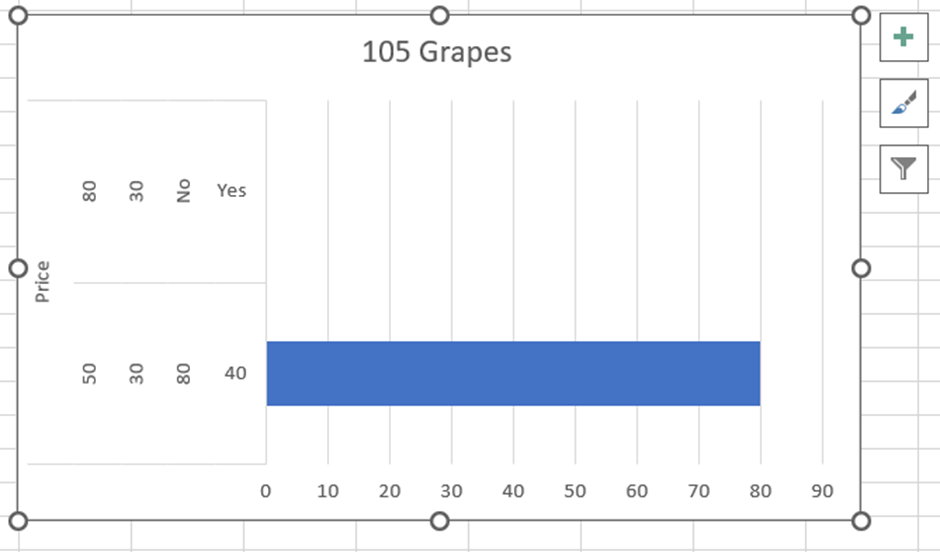
After storing the data in tables, you can turn it into charts to make it more visually appealing and make it easier to understand trends, patterns, and relationships within the data. After creating these charts, you may drag them wherever, just like an image/picture.
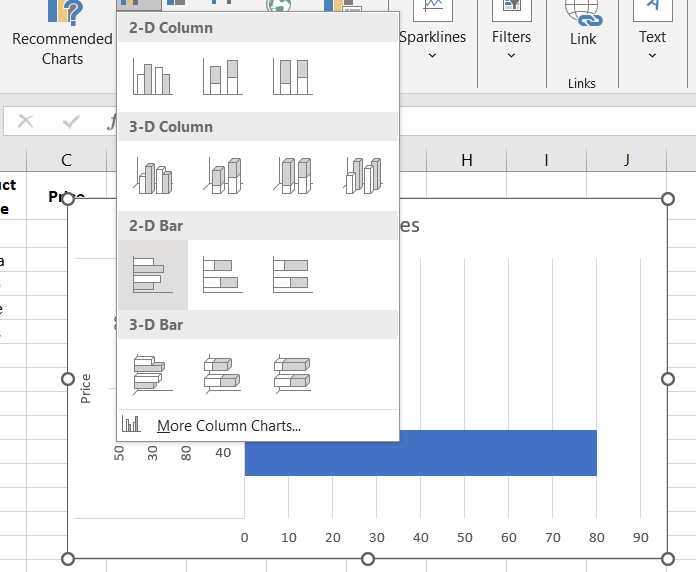
You first need to highlight the data and then select the Insert tab from the toolbar. There, you will find many chart kinds such as Column, Line, and Pie. Simply select the one that best suits your data, and Excel will quickly generate a chart based on your selection.
Saving and Sharing Your Data
After creating your data sheet, the last step is to save and share it. You can save it by following these steps.
To save your file:
- Click File > Save As
- Choose your location and name the file
To share:
- Save as PDF
- Or email the Excel file directly
Handy Excel Shortcut Keys for Beginners
These Excel shortcut keys could help you manage your data more easily and quickly. These are quite handy for data entry, data organizing, and formatting.
- Ctrl + C: Copy
- Ctrl + V: Paste
- Ctrl + Z: Undo
- Ctrl + Y: Redo
- Ctrl + S: Save
- Ctrl + P: Print
- Ctrl + X: Cut
- Ctrl + B: Bold
- Ctrl + I: Italic
- Ctrl + U: Underline
- Ctrl + T: Create a table
- Alt + E + S + V: To paste Special (Values)
- Ctrl + Arrow Keys: To quickly jump to the end of your data range
- Ctrl + Shift + L: Used to apply or remove filters from data or cells
- F2: Edit the selected cell
Excel Basic Functions and Formulas to Arrange Data
As you know, Excel is more than just creating sheets; it also provides a variety of formulas and built-in functions that we can use to make our tasks easier. So, in our “Excel Formulas for Beginners” guide, we have discussed all the Beginner Excel formulas that you can use for performing basic calculations.
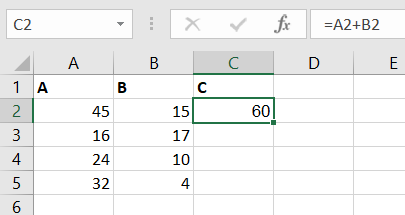
Excel allows you to create basic formulas for doing basic calculations. For example, to sum two numbers, you can use this formula.
=A2+B2
To apply this formula, first select any resulting cell where you want to locate the results, then enter the formula to get the results.
- = A1+A2 (Add)
- =A1–A2 (Subtract)
- =A1*A2 (Multiply)
- =A1/A2 (Divide)
Excel For Total Beginners: Wrap Up
Starting with Excel can feel overwhelming, but once you learn the basics, it quickly becomes a simple and powerful tool. This Excel guide for beginners covers everything you need to know to get started, from entering and formatting data to creating charts and using simple formulas. Whether you’re organizing household tasks or tracking personal goals, Excel is here to make your work easier.
If you’re wondering how to use Excel or looking for a clear, beginner Excel tutorial, this is your first step toward building confidence. Keep practicing what you’ve learned, and you’ll continue to discover just how useful and versatile Excel can be. It’s never too late to learn Excel basics, one click at a time.