If you’re new to Microsoft Excel, you might feel a bit overwhelmed at first. Don’t worry, once you understand the basics of worksheets, you’ll see how simple and useful they really are.
What’s an Excel Worksheet (Also called ‘Xcel Work Sheet’), Anyway?
Think of an Excel worksheet as a digital piece of graph paper. It’s made up of little boxes called cells, arranged in rows (going across) and columns (going up and down). You can type numbers, text, or formulas into these cells to organize your information.
Here’s something that confuses many beginners: Excel has both “workbooks” and “worksheets.” A workbook is like a binder, and worksheets are the individual pages inside it. When you open Excel, you’re opening a workbook that already has at least one worksheet ready to use.
Simply:
- Workbook = the entire Excel file (like a folder)
- Worksheet / Sheet = one page inside that file (like a tab)
- Cells = the little boxes where you type data (the grid)
So when someone says, “Put it on a new sheet,” they usually mean: create a new worksheet tab in the same workbook.
Why is this helpful? You can keep related information in one place. For example, let’s say you want to track your household finances:
- Sheet 1 could track your monthly expenses → track daily spending
- Sheet 2 could show your yearly budget → summarize totals and goals
- Sheet 3 might list your savings goals or bills
You can flip between these sheets by clicking the tabs at the bottom of your screen—just like flipping pages in a real notebook.
Understanding the Layout
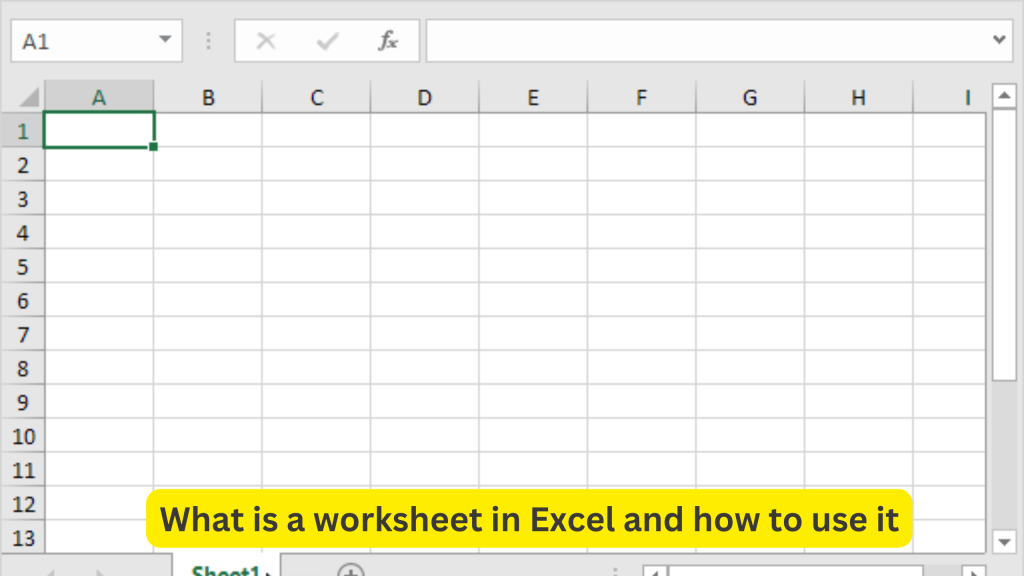
An Excel worksheet is structured into rows, columns, and cells, each playing a crucial role:
1) Rows and Columns
- Rows go sideways and are numbered: 1, 2, 3, and so on
- Columns go up and down and are lettered: A, B, C… and they keep going past Z to AA, AB, AC
2) Cells
A cell is where a row and column meet like A1 (Column A + Row 1).
Cells can hold:
- text (names, labels)
- Numbers (prices, totals)
- dates
- formulas (like
=SUM(A1:A10))
3) Worksheet tabs (where “sheets” live)
At the bottom, you’ll see tabs like Sheet1, Sheet2, etc. That’s how you move around inside the workbook.
Getting Started: Your First Worksheet
Excel allows users to easily create and manage worksheets. Here’s how:
Creating a New Worksheet
- Open Excel (you’ll automatically get a new workbook with a blank worksheet)
- By default, a workbook contains at least one worksheet. To add a new worksheet, click the + icon next to existing worksheet tabs.
- To rename a sheet, double-click its tab and type a new name like “Monthly Budget” or “Grocery List”
Navigating Worksheets
- Click worksheet tabs to switch between sheets.
- Use Ctrl + Page Up/Page Down (Windows) or Command + Page Up/Page Down (Mac) for quick navigation.
Reorder sheets
- Click and drag a sheet tab left or right
Copy a sheet (super useful)
- Right-click the sheet tab → Move or Copy
- Tick Create a copy → choose where to place it
Actually Using Your Worksheet
Now let’s get into the practical stuff, what you can actually do with these worksheets.
1) Typing and Editing
- Click any cell and start typing.
- Press Enter (move to the next row) or Tab (move to the next column).
- Use Shift + Enter (previous row) or Shift + Tab (previous column).
- Made a mistake? Just click the cell again and retype, or press F2 to edit what’s already there
2) Format for readability
You don’t have to stick with plain black text on a white background. Select some cells and use the options in the Home tab to:
- Make text bold, italic, or underlined
- Add background colors to highlight important information
- Draw borders around groups of cells
- Change font sizes to make headers stand out
Quick tip: Ctrl + B (or Command + B on Mac) makes text bold in a snap.
3) Using Simple Formulas (The Magic Part)
This is where Excel really shines. Instead of pulling out a calculator, you can have Excel do the math for you. Here are two simple formulas to get you started:
=SUM(A1:A10)– This adds up all the numbers in cells A1 through A10=AVERAGE(B1:B5)– This calculates the average of the numbers in cells B1 through B5
Just type these into a cell and press Enter. Excel instantly shows you the result.
4) Turn data into a chart (optional, but great for reports)
Numbers are great, but sometimes a picture tells the story better. Here’s how:
- Select the cells with your data
- Click the Insert tab at the top
- Choose a chart type—bar charts, pie charts, and line graphs are good places to start
- Excel creates the chart for you automatically
5) Sort and filter (makes big lists manageable)
- Click the Data tab
- Use the Sort button to arrange things alphabetically, numerically, or by date
- Use Filter to temporarily hide rows you don’t need to see right now
Why People Love Excel Worksheets
There are good reasons millions of people use Excel every day:
Everything in One Place – Instead of scattered notes and papers, your information lives in organized cells. Need to find something? Use the search function (Ctrl + F).
Save Time – Once you set up formulas, Excel does calculations automatically. Change one number, and everything updates instantly—no need to recalculate by hand.
Works for Small or Big Projects – Whether you’re planning a party for 20 people or managing data for a company with 2,000 employees, Excel scales to fit your needs.
Mistakes Beginners Often Make (And How to Avoid Them)
1) Putting everything on one giant sheet
Problem: it gets messy fast.
Better: split by purpose (Raw Data / Summary / Report).
2) Overwriting formulas by accident
Problem: totals stop updating.
Better: keep formulas in their own columns and label them clearly (e.g., Total, Tax, Balance).
3) Using merged cells everywhere
Problem: sorting/filtering breaks, tables behave weirdly.
Better: use Center Across Selection (Format Cells) or keep headers simple.
4) Inconsistent data types
Examples:
- mixing “$50” and “50”
- mixing date formats
Better: set a consistent format for the whole column.
5) Blank rows inside your data table
Problem: Excel treats it like separate blocks, which breaks sorting/filtering.
Better: keep the table continuous; add spacing outside the table if needed.
6) Not saving versions (until it’s too late)
Better: occasionally “Save As” a version like Report_v2.xlsx before big changes.
Final Thoughts
Excel worksheets might seem complicated at first glance, but they’re really just organized spaces for your information. Start simple, maybe create a grocery list or track your weekly expenses. As you get comfortable with the basics, you’ll naturally discover more features.
The key is not to learn everything at once. Pick one new skill each week. This week, practice entering data and formatting cells. Next week, try a simple formula. Before you know it, you’ll be creating worksheets that make your life easier.
Ready to give it a try? Open Excel and start experimenting, you really can’t break anything, so feel free to click around and explore!
Read more: 24 Essential Excel Functions Every Beginner Should Learn